One of the most essential parts of setting up your Facebook presence is what your page preview looks like.
What is a Facebook Page Preview?
Your page preview is the little card that pops up when someone hovers over your page name, wherever they may come across it. The reason it is so powerful, is because of all the places that people come across it.
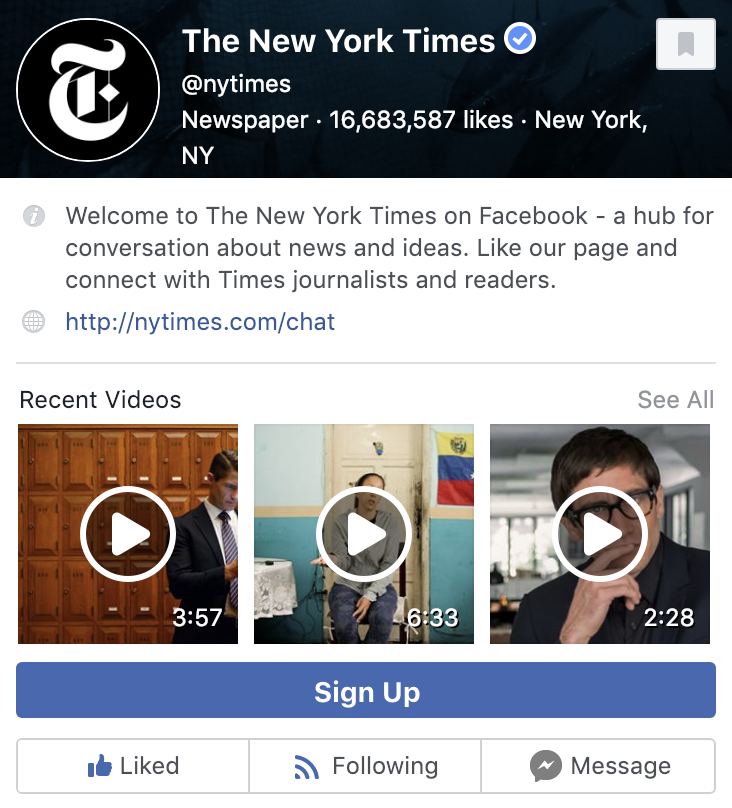
Your page preview is connected to every post you share, comment you make, like you leave, etc. Any time your page has an interaction on facebook, you’re creating another opportunity for someone to engage with your page preview.
What Your Page Preview Includes
Page title
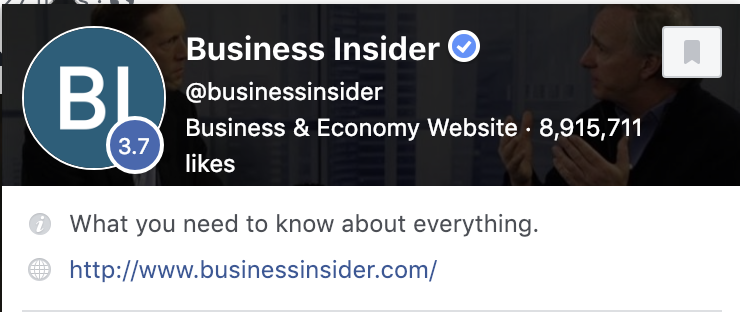
The first things that are listed in your page preview are the title of your page, and your username.
Take a moment to think about your page title, and the handle that you are using on facebook. Do they actually make sense? Sometimes we can be a little too clever for our own good. Make sure that your name is short, to-the-point, and memorable.
Category
The next thing you’ll notice is the “category” that your page is listed under. Run back through your options and make sure that you’re using the most specific and accurate page category that you can. This will help people understand, at a glance, who you are and what you do.
Follows
Your page preview also includes a count of how many followers you have, and if a prospect’s friend follows your page, it will also let them know that. Having a large number of followers tends to draw more followers, as does having a connection to someone else who follows the page. (So, add that to the list of reasons to drive your facebook follow count up.) Coincidentally, one of the best ways to up your follow count, is by optimizing your preview. Kind of a chicken and egg scenario, I know…
Updating Your Facebook About Tab
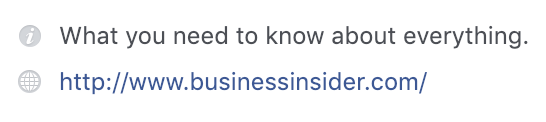
The next bits of information on your page preview come from your page’s about tab. Check your about tab to make sure you’ve included:
- A short, descriptive summary of your business.
- A link to your website
Updating Messaging Options
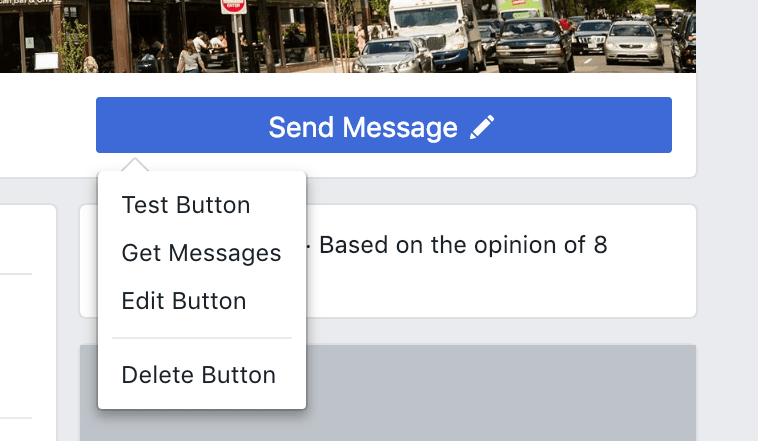
Make sure that anyone who engages with your preview has the ability to get in touch with you easily. Turn messaging on, in your page’s settings page, under Messaging.
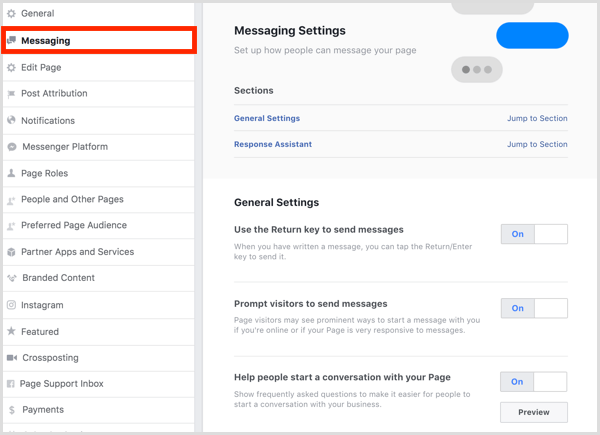
Once you’ve turned on messaging, you can click the “add button” button, on your preview, to add a Send Message button. A great way to get people into your funnel.
Positive Reviews
In some cases, reviews of your business page will show up in your facebook preview. Of course, we want positive reviews to show first. Take a look at your recent reviews—if there are any. Be sure to reach out to satisfied customers and encourage them to leave reviews!
Conclusion
Your facebook preview is often the first piece of marketing material that a potential client or customer will engage with. Take the time to make sure that yours is engaging, concise, and easy to interact with. Once you’ve set this up, you can kick-start your funnel with facebook chat bots, drip campaigns, chat blasts and more!
Get in touch today if you need help optimizing your facebook page!

 DeMaio Digital Marketing