One of the quickest ways you can boost your on-page SEO, is to incorporate interactive elements. Giving your reader something interesting to do will keep them on your page longer. Increasing the time spend on your pages, and decreasing your bounce rate by providing engaging, interactive content will boost your search engine rankings and create happy prospects.
Interactive Photo Comparisons
An easy way to incorporate interactive elements in your blogs or site pages is the side-by-side photo comparison slider. You’ve seen these before. Buzzfeed has been known to make particularly catchy content in this format.
The idea is simple. Place two photos that you want to compare, layered on top of one another, so that you can view parts of one or the other. When you move the slider to one side, you can see the entirety of one of the photos, and vice versa. The possibilities for this are vast, but one way we see them used all the time is for “before and after” comparisons.
Juxtapose
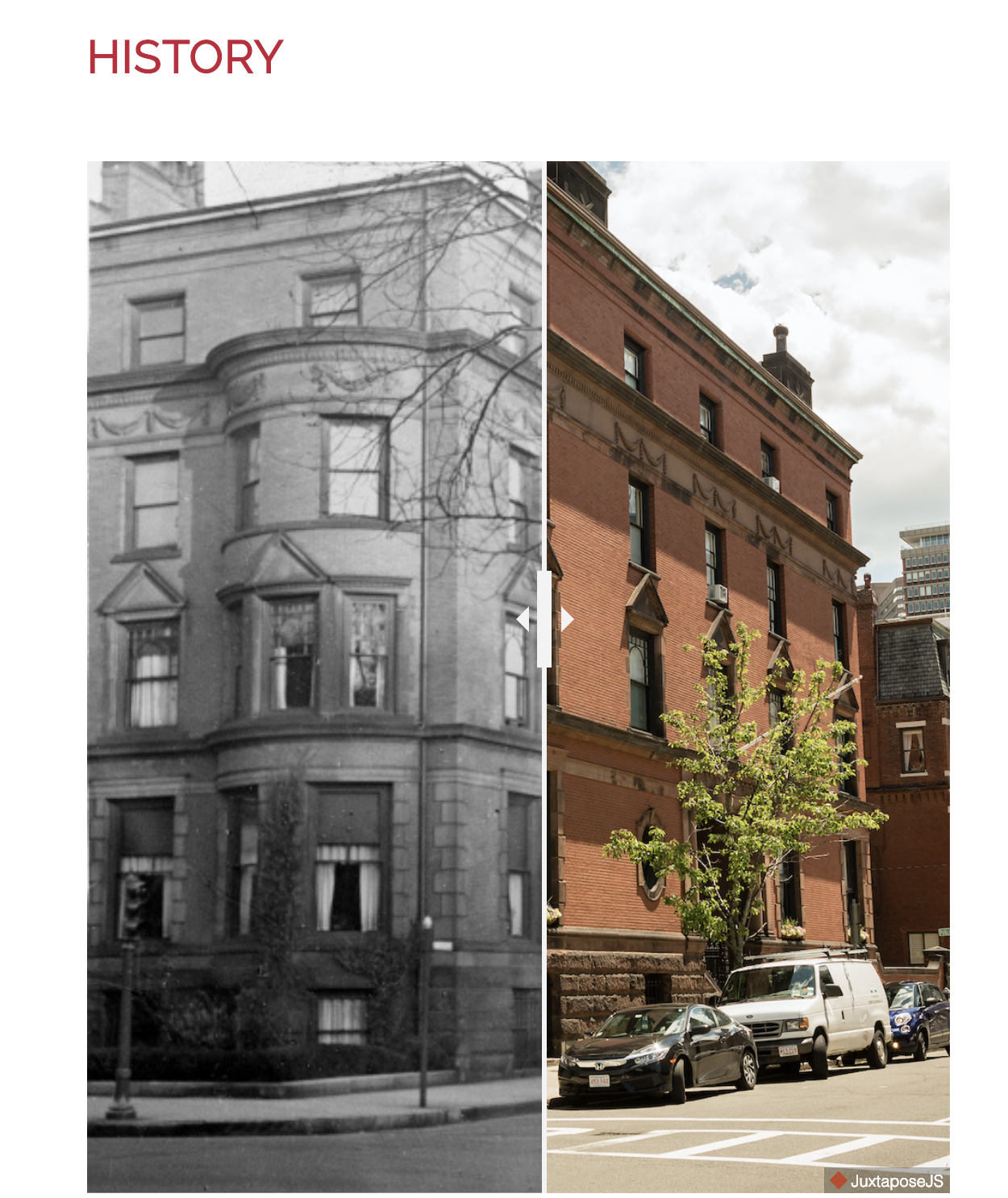
Creating something like this used to take some in-depth coding knowledge. Nowadays, there are free programs that allow you to do this right from your desktop. Juxtapose is one of the best tools for this.
Head over to Juxtapose’s interface and you’ll see that it’s a pretty easy endeavor. Juxtapose uses image URLs to pull in web-based images for creating your side-by-side photo. For that reason, you’ll have to upload your photos to a site server, or into your dropbox account to be able to use them here.
Getting Started
Before you get started, make sure that your photos are well-suited for side-by-side comparison. You’ll ideally want photos that are the same size and dimensions, and you’ll want to make sure that any identifiable pieces of the different images line up evenly. Check to make sure that your photos are crooked!
Once you have your photos uploaded to dropbox, simply select the photo you want on the left, and the photo you want on the right, and get load them up. Juxtapose will automatically create a preview of your new image. (Check it over to make sure your photos are lined up correctly.)
Embed your Photos
If you’re satisfied with your image, click publish. This will generate an embed code that you can use on your site pages, blog posts, or emails—anywhere that accepts embeds.
This is a great opportunity to update high-performing pieces of content. Swap out a single image for a side-by-side image comparison and watch your engagement rise!
Get in touch if you need help developing or implementing new marketing ideas!

 DeMaio Digital Marketing