You may hear it called retargeting, but in the parlance of Google, it’s “remarketing.” They mean essentially the same thing. Targeting customers who have already interacted with your site or social media, with highly-specified ads.

What is Remarketing
Remarketing is the act of targeting ads at someone who has already interacted with your site or product. We assume these people have been marketed to in some way, which is what drove them to your site. When we segment these people and reach out to them again, we are remarketing.
Remarketing involves tracking the activity on your website and landing pages, and creating (ever-updating) audiences of visitors. By tracking individual pages and products, we can target the exact products or services that these people showed interest in, and draw them back in to make the sale.
Getting Started with Remarketing
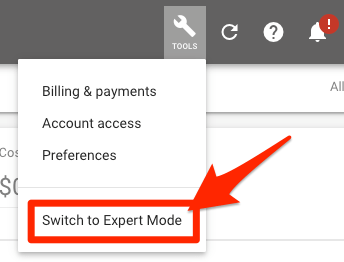
Google makes it relatively easy to set up your first remarketing campaigns, if you have a little bit of marketing know-how. First, you’ll want to make sure that your Google Ad account is in Expert mode (yes, that’s really what it’s called). When you first start an Adwords account, it sets you up in a beginner mode with fewer options. In order to harness the true power of Adwords, you’ll need all of the options.
Google Site Tags
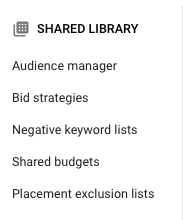
Once you’re in Expert mode, you’ll be able to access the Audience Manager tab. Click the “tools” icon, and click Audience Manager under the Shared Library column.
From here, click Audience Sources on the left of the screen. There you’ll see the option for Google Ads tags. Googles Ad tags work very similarly to Facebook’s Pixel, and is also very similar to the Google Analytics tracking code in a way. They are all pieces of tracking code, that can determine who is visiting your site and connect that back to either their Google/Youtube accounts, or in the case of the Pixel, their Facebook/Instagram accounts.
Installing Ads Tags

There are a few options for installing the Ads tags; the option to install it yourself is your best bet for getting up and running as soon as possible, and it isn’t too tricky to do. For most sites, you’ll want to copy the global site tag, and then install it in the header of your site. This tag tracks overall visitors to your site, which is great, but the next step is even more important.
You’ll want to copy the events tag as well, and embed that onto each relevant page of your site. This will allow Google to better understand your site, and the behaviors of your visitors. With this information, you can target extremely contextualized ads at very specific groups of people—to great effect.
Once you’ve installed your Ads tags on all of your pages, Google will do the heavy lifting of populating some pre-designed ad audiences for you. Depending on the type of business you are running, Facebook will curate a selection of relevant audience types, and populate them accordingly. You may have more specific needs though.
Creating Your Own Ad Audiences
You also have the ability to create specific audiences based on page-views or behaviors. By installing the Events Tag you can track individual page views, and even the actions taken on those pages, so that you can target more specifically.
So Many Uses
This is used to great effect with the “item in cart” ads you see every time you engage with a “shopping cart” page on a website. You can track whether someone has taken a step towards making a purchase, and then target an ad nudging them to follow through with that step. The granularity you can achieve with the right tracking and ad copy is pretty astounding.
Targeting Website Visitors
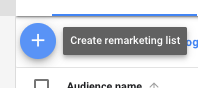
In your audience manager, click the blue plus sign to add a new remarketing list. From here you’ll see a list of options for your audience sources. Select “website visitors,” and you’ll be brought to a page with more potential than it looks.

This page allows you to create a mind-boggling number of audiences. You can choose visitors to a specific page on your site, visitors who viewed a specific page and another page, visitors of pages with certain tags, during specific time frames, etc. You are only bound by your own site pages! The hardest part is deciding where to start.
I’d suggest creating a targeted ad for people who viewed your landing page, and try to nudge them to make the move and submit on the landing page. This may mean that you need to tweak your landing page or offer first—if your conversion rate is particularly low—but remarketing to those folks who have already approached your solution is usually a high-converting strategy, if you have a quality product to offer!
Choosing Your Audience
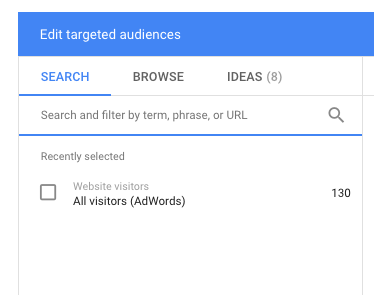
Next time you go to create an ad campaign in your AdWords account, you’ll be able to choose your new audience to target, and it will update as new prospects are added. Simply add a new display campaign and browse your audiences to select your newly created group.
The possibilities for this strategy are truly endless. Get in touch to discuss how remarketed ads could help your business or agency!

 DeMaio Digital Marketing
2 thoughts on “Remarketing with Google Ads”