Facebook’s Ad Manager feature is a great tool that brings together all of the aspects of ad creation and reporting that you need most, right to your fingertips. To make the most of your Ad Manager account, you should first understand how it’s set up, and how it can be used.
Ads Manager Set-Up
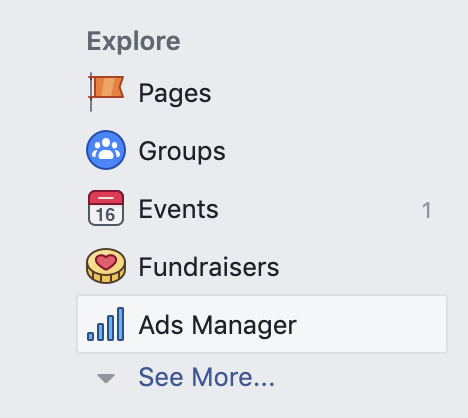
If you’re running ads for a Facebook page (or more than one page) you’ve probably seen the Ads Manager at some point. It isn’t the only option for creating and managing your ads, but it is often the most convenient and useful option.
There are a few different ways to access the Ads Manager page. From your personal newsfeed, you can find a link to it in the Explore section of the left toolbar. Clicking that link will take you directly to your own personal Ads Manager page.
If you’ve never run any ads from your page, you’ll be presented with a page that looks something like the one below. You can see in this image the categories across the top that serve as the main organizational framework for the Ads Manager page. Namely, Campaigns, Ad Sets, and Ads.
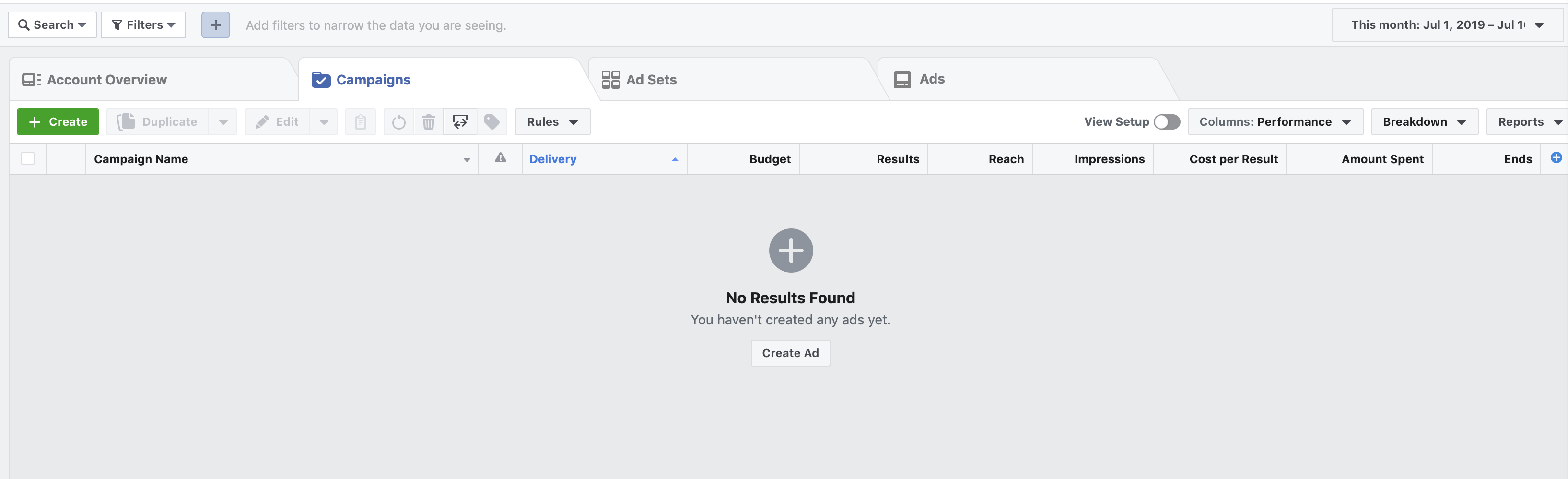
Campaigns, Ad Sets, and Ads
Everything that you do in the Ads Manager happens at either the Campaign level, the Ad Set level, or the Ad level. Campaigns are the broadest category. Within each Campaign, there will be at least one Ad Set. An Ad Set is just as it sounds—it’s a grouping of ads that all have the same, or similar, intent. Within each Ad Set, there will be at least one Ad. Let’s look a little more at what each level contains.
Campaigns
The highest level of organization in the Ads Manager is the Campaign level. A campaign is the broadest category for your advertising efforts, and contain multiple groupings of ads that all serve slightly different purposes.
When you create a campaign, you’ll be prompted to select the objective of the campaign. This is a good way to think about how your campaigns should be separated. It can be tempting to make everything its own campaign, or group too many ad sets under one campaign. Consider the intent and objective of your campaign, and then decide on the sort of ads that serve that goal. If the intent of your campaign is to raise awareness for your brand, you wouldn’t include ads with direct sales pitches in that campaign. Those would go into a conversion campaign.
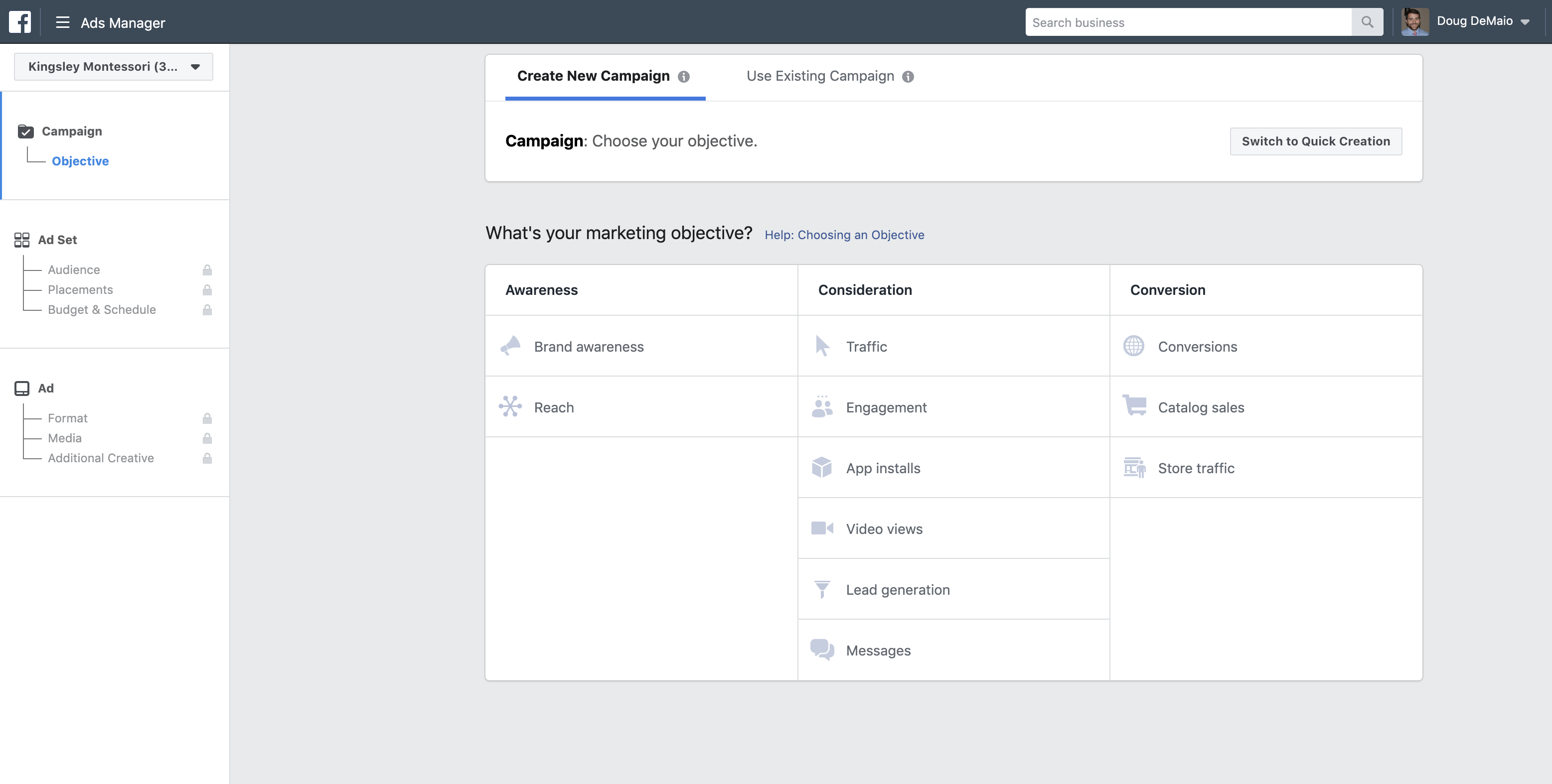
Once you choose the type of campaign you’ll be creating, you’ll be asked to give it a name. Remember, this is the name of the campaign—each ad set, and each individual ad will also have a title. If you keep your titles organized from the beginning, you’ll have a lot easier time navigating your Ads Manager.
After naming your campaign, you’ll see two toggle switches. These are the only campaign-level adjustments you can make, beyond your marketing objective. You can choose to create an A/B test, or you can choose to optimize your budget across ad sets. (You cannot do both of these things for the same campaign.)
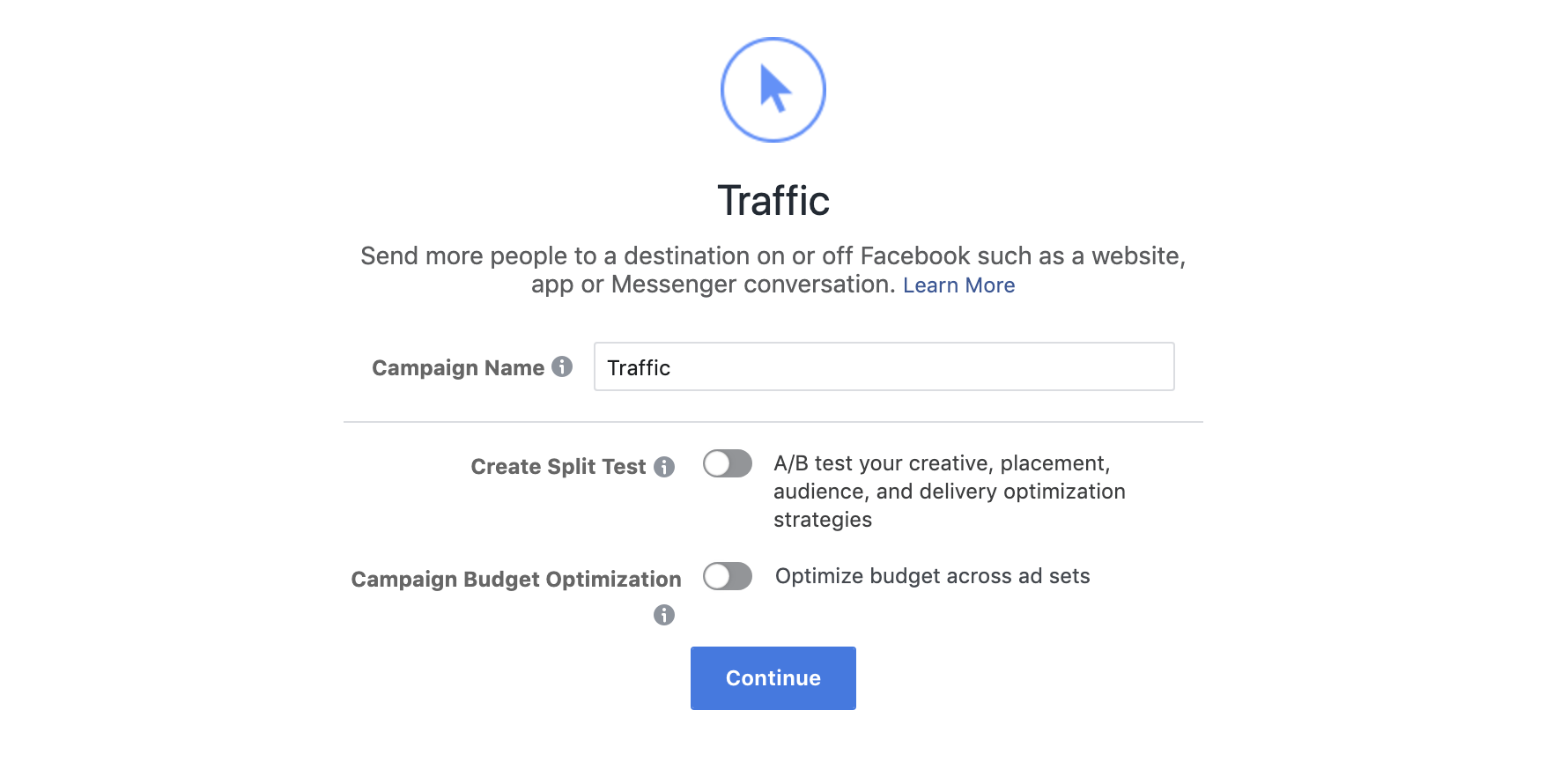
Creating an A/B test means that you can choose a variable to test in your ads, and Facebook will run an A and a B version of your ad, and tell you which variation was the most effective. This option is useful, but is beginning to be made obsolete by things like dynamic ads—ads that will go out in a variety of formats, and self-optimize budgeting to serve the most effective ads most often.
The other option, to optimize your budget across ad sets, is a feature Facebook offers in an attempt to give you a better ROI on your ad spend. Facebook will utilize your campaign’s budget across multiple ad sets to deliver the best results based on your delivery choices and bid strategies, combined with Facebook’s data regarding your ad efficiency. This is a great option if you plan on creating multiple ad sets within your campaign (which you should!).
Ad Sets
Once you’ve given a name to your campaign, and chosen your optimization options, you’ll be transported to the Ad Set creation page. This page is where you get to explore your budgeting, audience, and placement options. Remember, you can create multiple ad sets per campaign, with different targeting and placement options—so make your audience as accurate as possible for each set.
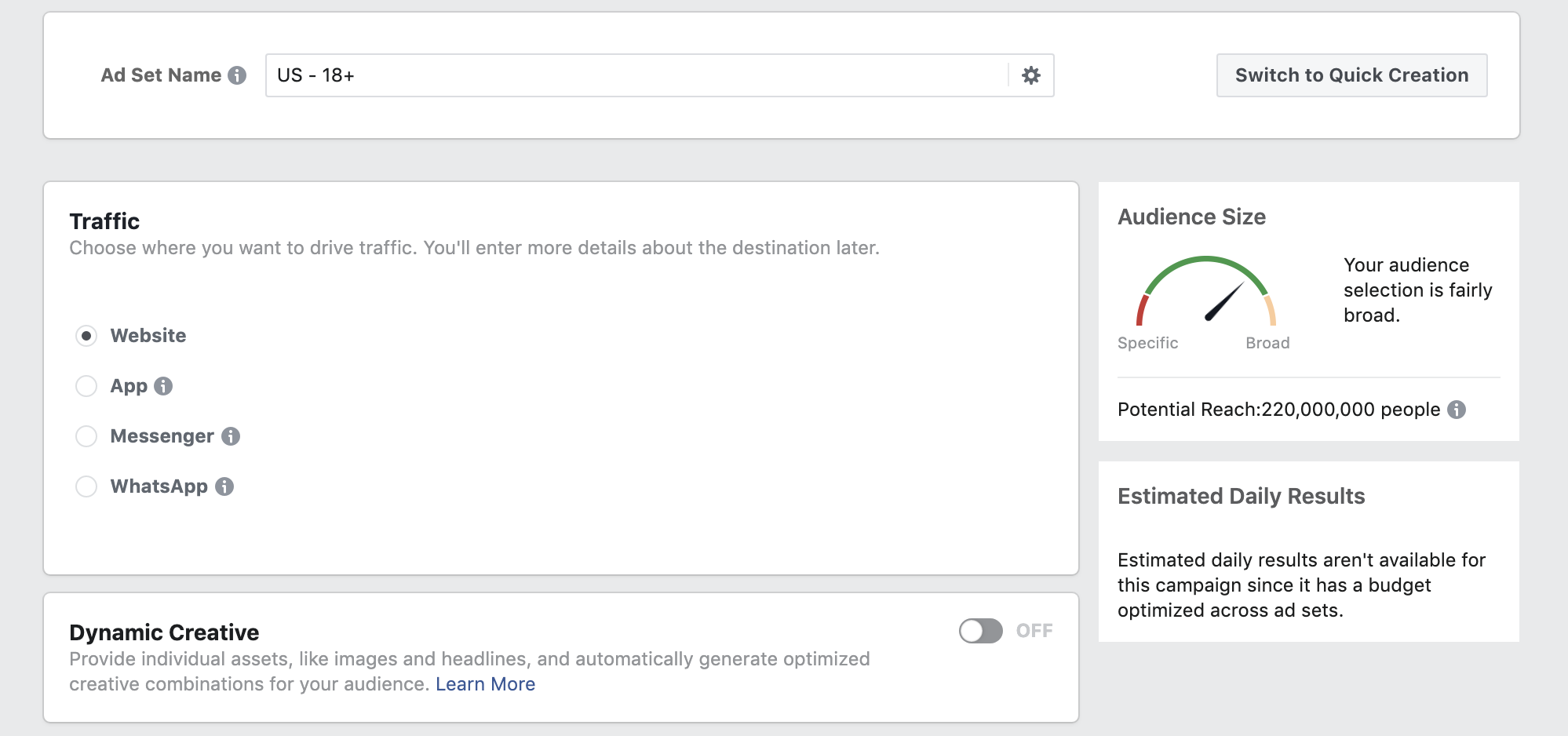
You’ll start by choosing where you want to drive your traffic—to a landing page on your website; to your app, if you have one; or to your messenger (a great idea if you have a bot set up), or WhatsApp accounts. Depending on the goal of this particular ad set, Facebook will help you optimize your ads to reach that goal.
The next choice is whether to utilize the Dynamic Creative option. This is an interesting option is you’re planning on running multiple ads with the same offer. Using the Dynamic Creative option allows you to upload multiple creatives (images, videos, headlines), and Facebook serves up different combinations, decides which are most effective, and optimizes your budget to serve those variations. This is definitely an option worth looking into, but I suggest starting with a simple ad set, if you’re new to this.
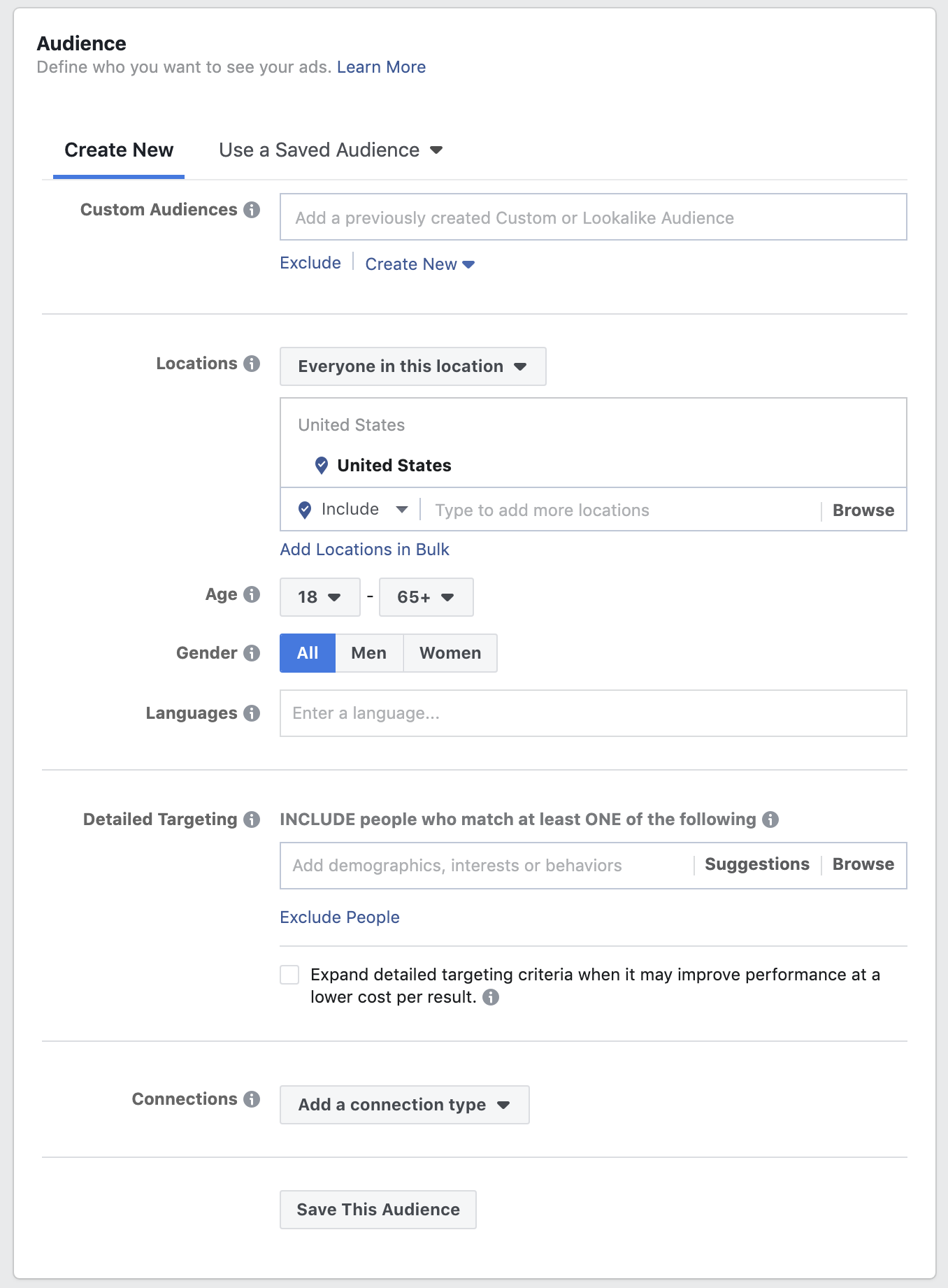
Your next option is to create, or choose, an audience for your ad set. There are nearly endless combinations of targeting that you can use to create your first audience. The important thing to remember is that as you make your way down the page, you are further and further narrowing your audience. That is to say, if you select a geographic location, and then a language, and then an interest, your audience will only contain people living in that geographic region, who also speak that language, and who also have that particular interest. Narrower audiences will cost less to deliver ads to, but with fewer member of your audience, you have fewer chances to convert.
Finally, you can select the options for your placements, budget, and scheduling. Your placement options refer to where Facebook will include your ads—in news feeds, in sidebars, on Instagram, etc. Automatica Placements are usually the most efficient, for most types of ads.
For your budget and schedule, you have a number of interesting options. Setting a start and end time for your ad set is likely a good idea, especially if your offer is time-sensitive. Beyond start and end dates, you can also choose what times of day, or days of the week, your ads run. You can also choose to set a spending limit for this ad set, if you want to make sure your ad spend stays within a certain range.
Once you’ve made it through all of these options, you’re ready to move on to the actual ad!
Ads
Now that you’ve determined the objective of your campaign; and the target audience, budget, and placement of your ad sets; it’s time to design your ads. Once your ad set is complete, you’ll end up on a page that looks like the one below. As you can see in the image, you have the option to create a new ad, or to use an existing post from your Facebook page.
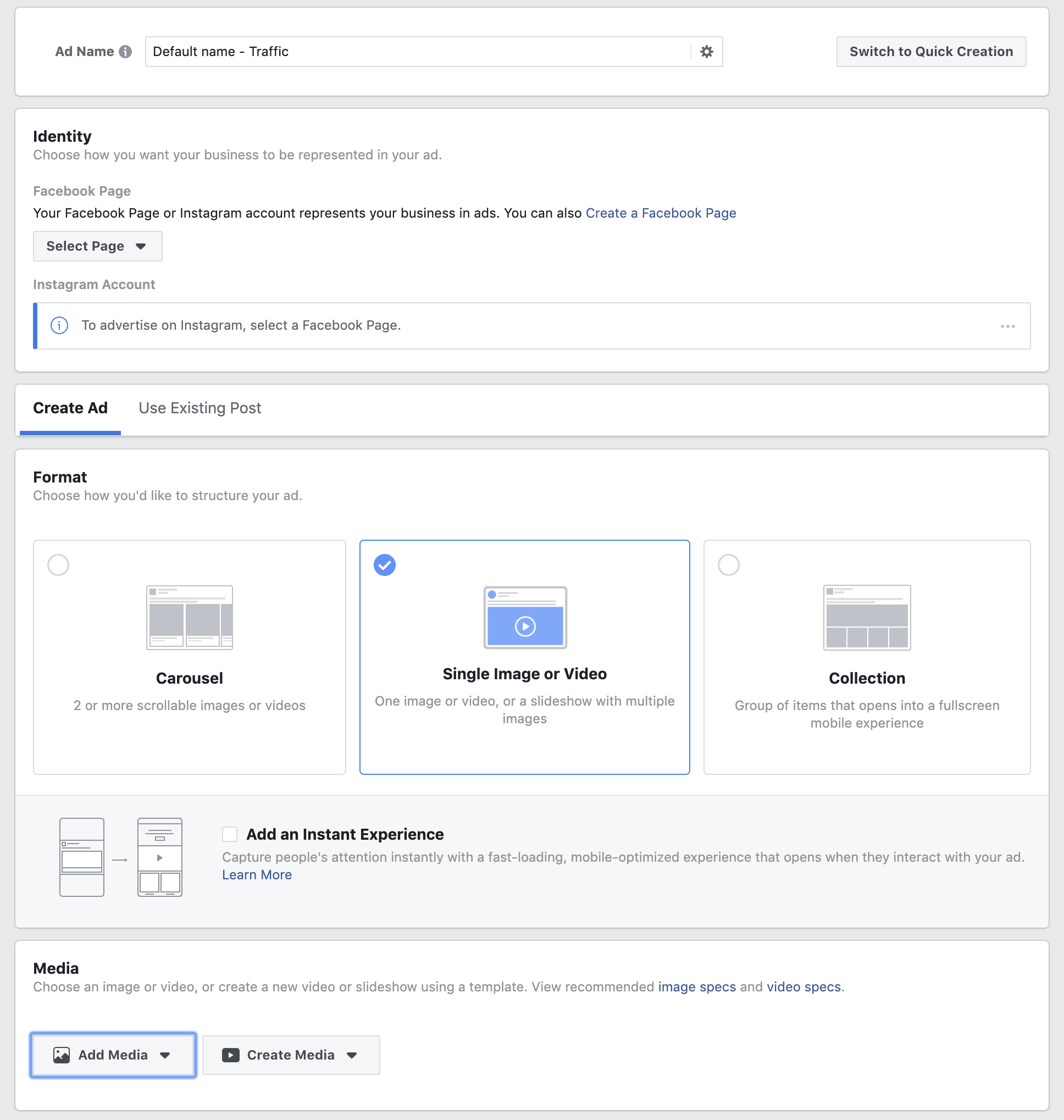
Creating your own post allows you to select the format of the ad, the media and wording used (the creatives), and where your ad directs to. Try creating a simple ad with a call-to-action that will drive your audience to click your link and view your offer.
There are great use cases for every type of ad and format listed in the ads creator. This is your chance to get creative, try different things, and see which ads are gaining the most traction with your audiences. With the insights available in the Ads Manager, you can easily identify the high performing ads, and turn off those that aren’t contributing.
Managing Campaigns
Once you’ve created your first campaign, you’ll see it appear under the Campaigns tab of your Ads Manager. You can also view your ad set information, and your individual ads in the respective tabs within your Ads Manager.
Tips and Tricks
When viewing your campaigns, you can select a single campaign by clicking the check-box beside it. This will filter out all other ad sets and ads in your Ads Manager that aren’t related to the selected campaign.
Once your ads are created, you can edit, delete, or create new ad sets and ads from your Ads Manager. Navigate to the proper tab, and click the green +Create button to add new ads or ad sets. Remember, when editing in the Ads Manager, any change you make to a higher level category will affect all of the assets contained in that category. That is to say, any changes you make on the Campaign level, will effect all ad sets and ads contained in that campaign. If you make edits to an ad set, all of the ads within that set will reflect those changes.
There are countless ways to create, test, and optimize your Facebook ads. Start with something simple, and build from there. Sometimes the simplest ads, funnels, or offers, can be the most profitable.
Conclusion
While the options for creating Facebook ads are nearly endless, if you follow the steps laid out in the Ads Manager for creating a new ad, you should be able to see first-hand how Facebook composes and delivers ads. With a little practice, you can start exploring all of the different options, learning how to create the most impactful Facebook ad campaigns.
Get in touch today to discuss the possibilities of Facebook advertising for your business!

 DeMaio Digital Marketing
5 thoughts on “Facebook Ads Manager: Basics”