Facebook offers the ability to create countless versions of your high-performing ads, without having to create and manage each one.
What is a Dynamic Ad
When creating conversion campaigns, Facebook allows advertisers to create Dynamic Ads. Using dynamic ads, you can enter multiple creatives and taglines, and facebook will combine them in different ways, test which ones work the best, and allocate your budget accordingly.
By doing this, Facebook keeps your ads fresh, cycling through different creatives (and combinations of creatives), but also optimizes the delivery of those ads, so the ones that are converting the best, get a larger proportion of the ad spend. It’s almost like running a miniature A-B test, and updating your spend continuously.
Getting Set Up
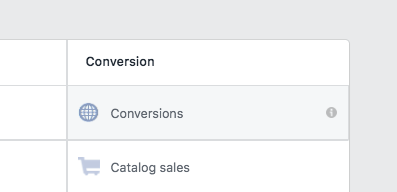
Once your Facebook pixel is set up, and you are able to run conversion ads, setting up dynamic creatives is simple. Check out this post for more information on setting up your pixel, and getting custom conversions running for your ad account. If you need more basics on the Facebook Ad Manager, check out this post. Once your pixel is up and running, we can start creating conversion campaigns, and using dynamic creatives.
Create Your Conversion Campaign
First, create a new campaign from your Facebook Ads Manager, and select Conversions as your objective. You’ll be prompted to select your pixel and the conversion that you are promoting.
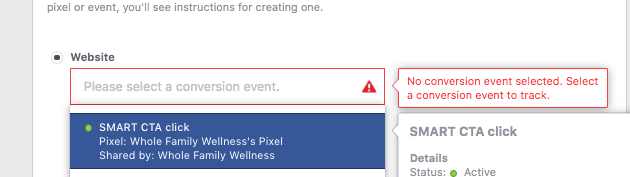
Conversion ads utilize Facebook’s inherent data to deliver the right sorts of ads to the right people, to increase conversions. They’re also the only type of ads that allow for dynamic creatives.
After selecting your desired conversion event you’ll see the option for engaging dynamic creatives below.
Engage Dynamic Creatives
The dynamic creative option defaults to being off. Click the slider to turn them ON. (A dialogue box will likely pop up, letting you know the basics of using dynamic creatives.)

Work your way through the rest of your ad set level options as you normally would. You can check out some past blog posts for tips on how to set up your audiences for maximum conversions by using custom audiences, lookalike audiences, and some other retargeting tactics. You can still utilize these tricks with a dynamic creative conversion ad. Get creative with it.
Utilizing Dynamic Fields
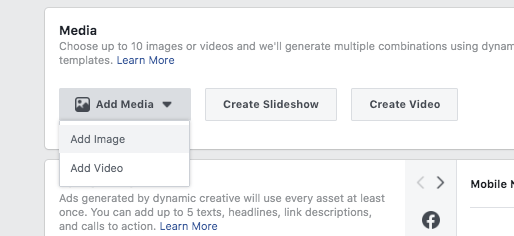
Once your ad set level options are complete, it’s time to get dynamic. Your first choice when creating a dynamic ad, is what type of ad you’re creating.
Dynamic ads will mix and match your images, ad copy, CTAs, etc, but each combination will be the same type of ad—a video ad, or a photo ad. (You can also create a slideshow or a video from this page—but that’s not usually needed in my experience. Let’s stick with the most common scenario.) Assuming you have your media ready to go, you can choose whether you want to test a variety of photo ads, or a variety of video ads by choosing add image, or add video, respectively.
Add Media
Select the pieces of media you want to use in your ads from the window. You’ll notice, unlike regular ad creation, that you have the ability to select multiple images or videos just by clicking them. Select the creatives you want to utilize and click continue. You’ll see your selections pop up in the media window to confirm.
Add Text and Links
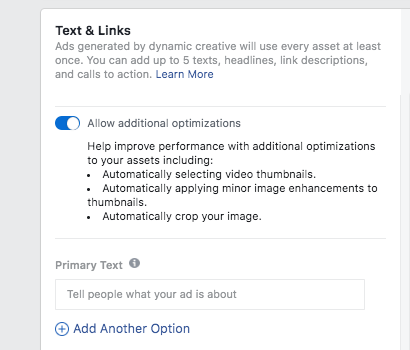
Your next choices are text and links. You’ll see that after each section of the ad, (primary text, headline, description, and call to action) there is an option to “Add Another Option.” Pretty self-explanatory…
Write in your best, highest-converting ad copy in the first “primary text” box, and then add your next badass piece of ad copy in the “Add Another Option” section. This works great if you have a few different angles that you’re trying for the same offer, but not much time to a/b test every one!
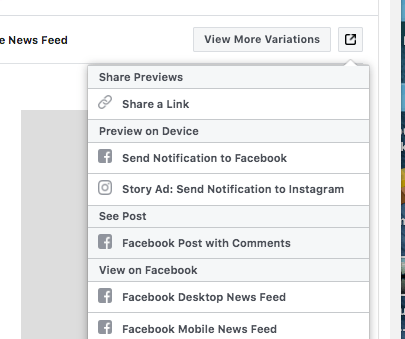
Work your way down the list, and add as many options as you want for each section of the ad. (You don’t have to have the same number of options in each section.) You can check what the different versions of your ad will look like by toggling the options on the right, or selecting “view more variations.”
Publish that Ad!
Once you’ve added in your media, your tag lines, and the other variables that you’re betting will be effective, you’re ready to let that dynamic ad fly. Confirm your ad at the bottom of the page, and Facebook will do the rest.
TIP: You can check back on your ad in the ads manager. When you start getting engagements, you can check which versions of the ad are bringing in the likes and comments by clicking the pop-out option next to “view more variations” in the ad edit page. You can choose to view posts by “posts with comments” to see what’s going on in the comments of particular ads.
If you have questions about setting up high-converting, dynamic Facebook (and Instagram!) ads, drop me a line! Happy to help.

 DeMaio Digital Marketing
One thought on “Creating Dynamic Ads on Facebook”